How to Add the Korean Keyboard on iPhone
Add the Korean keyboard to your iPhone in under a minute, choose between Standard and 10-Key, and learn how to switch languages and type your first words.
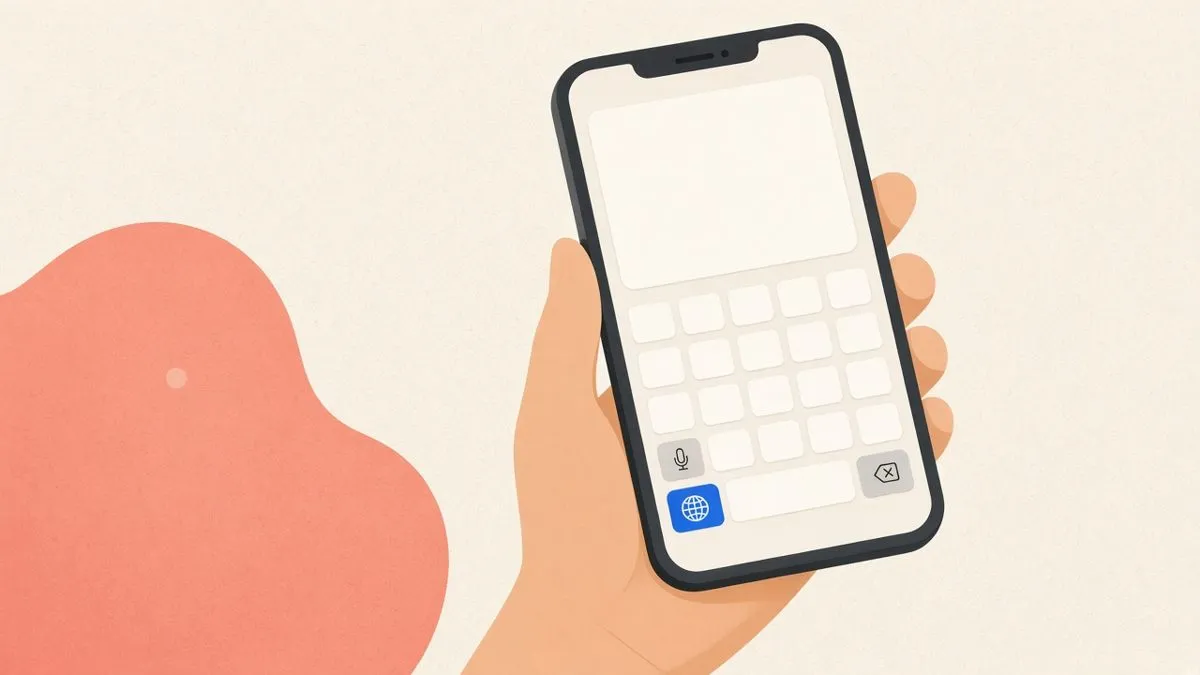
You don’t need an app
The Korean keyboard is built into every iPhone and iPad. You don’t need to download anything from the App Store. You only need to turn it on in Settings.
Step by step: add Korean on iPhone
- Open Settings.
- Tap General.
- Tap Keyboard.
- Tap Keyboards at the top.
- Tap Add New Keyboard…
- Scroll to Korean (한국어) and tap it. You can also search for it.
- Choose a layout: Standard or 10-Key. Pick Standard if you’re not sure (see below).
- Tap Done.
That’s it. Korean is now one of your keyboards. Your iPhone’s language does not change; menus stay in English.
Standard or 10-Key?
- Standard is the 두벌식 layout, the same one used on Korean computers. Consonants are on the left, vowels on the right, laid out over the QWERTY keys.
- 10-Key is the 천지인-style phone keypad, where you build vowels from a dot and lines. Many Koreans use it for one-handed texting.
If you’re learning Korean, start with Standard. What you learn on your phone then carries over to a computer keyboard, and the other way round.
How to switch to Korean while typing
Open any app with a text box, like Notes or Messages.
- Tap the globe (🌐) key next to the space bar to cycle through keyboards.
- Or touch and hold the globe key to see a list and pick 한국어.
If you only have one extra keyboard besides emoji, you may see an emoji face instead of a globe. Adding Korean usually brings the globe back.
Type your first words
On the Standard Korean keyboard, type letters in order and the iPhone builds syllables for you:
- ㅇ + ㅏ + ㄴ → 안
- ㄴ + ㅕ + ㅇ → 녕
So typing ㅇㅏㄴㄴㅕㅇ gives you 안녕. You don’t press space between letters of a word; you only press space between words.
How to type ㄲ, ㅆ, ㅒ and ㅖ
Tap the Shift (⇧) key, then:
- ㅂ becomes ㅃ
- ㅈ becomes ㅉ
- ㄷ becomes ㄸ
- ㄱ becomes ㄲ
- ㅅ becomes ㅆ
- ㅐ becomes ㅒ
- ㅔ becomes ㅖ
Shift turns off again after one letter, just like a capital letter in English.
How to type ㅘ, ㅝ and other compound vowels
There’s no key for them. Type the two vowels one after another: ㅗ + ㅏ = ㅘ, ㅜ + ㅓ = ㅝ, ㅡ + ㅣ = ㅢ. The keyboard joins them automatically.
Remove or reorder keyboards
Go to Settings → General → Keyboard → Keyboards and tap Edit. Drag keyboards to reorder them, or tap the red minus to remove one.
Troubleshooting
I don’t see the globe key. Make sure Korean was actually added under Keyboards. Some third-party keyboards hide the globe; switch back to the Apple keyboard first.
Letters appear separately (ㅎㅏㄴ instead of 한). You may be on a third-party keyboard, or the app may not support Korean input well. Test in Notes.
Autocorrect changes my Korean. You can turn off Auto-Correction in Settings → General → Keyboard. It applies to all keyboards.
Using a hardware keyboard with your iPad
If you type on an iPad with a Magic Keyboard or another Bluetooth keyboard, the same Korean keyboard works there too. Press the globe key (or Control + Space) to switch. The keys follow the 두벌식 layout, so it really helps to learn it by touch.
Learn the layout so you stop hunting for keys
On a phone screen you can see the letters, but finding them still slows you down at first. If you learn 두벌식 on a computer keyboard, the phone layout will feel familiar right away, because it’s the same arrangement.
Typing Korean is a free web app that teaches 두벌식 a few keys at a time, using real words with their meanings read aloud. Sessions are short, and you can see your progress after each one.